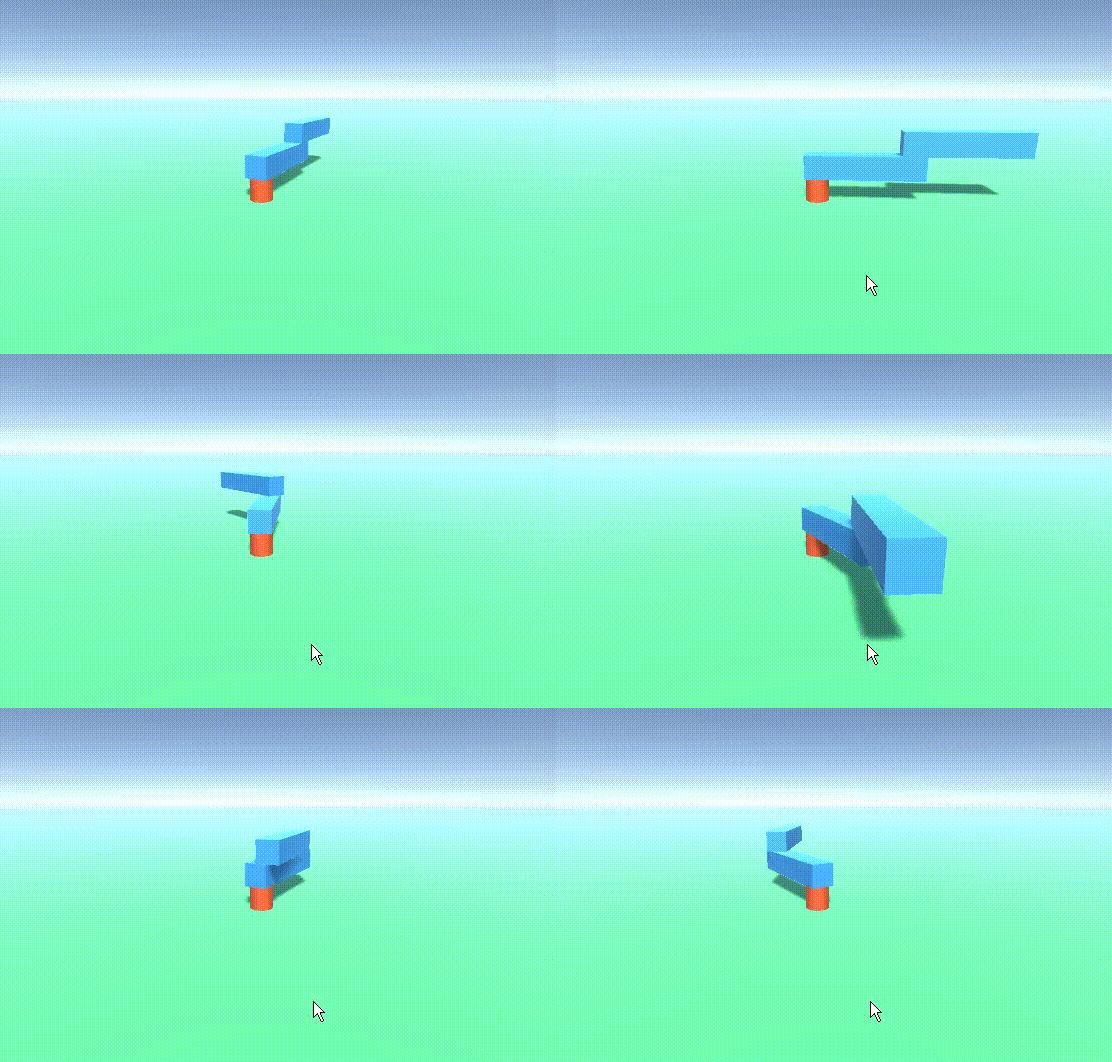
ぶれないリンク、ArticulationBody。
使い方は、UnityのArticulationBodyの使い方がわかりやすい。
作ってみて、ポイントをまとめた。
- 関節部分に対して、空のオブジェクト(JointAとする)を作り、その下に、実体をCubeなどのオブジェクトで作る(LinkA)。x, y, z , rotation は適時調整。
- JointAには、Articulation Body をAddする。
- このJointAの下に(Cubeの下ではない)、次の関節(JointB)と実体LinkBを作り、JointBには、Articulation BodyをAddする。x, y, z, rotation は適時調整。
- 同様に、JointB + LinkB をコピーして、JointBの下につけ、JointC + LinkCのようにしていけば、関節が増えていく。

- 各Joint のArticulation Body のパラメータを整える。
- 一番根本のJoint Aは床面に固定されて動かないものとし、Immovable にチェックを入れる。

- Joint B, Cについては、
Articulation Joint Type を、Revoluteにする。
Anchor PositionとAnchor Rotation の数値を調節し、赤い円盤を関節可動部に合わせる。
Stiffness 10000、Damping 100、Force Limit 100 などにする。

- 一番根本のJoint Aは床面に固定されて動かないものとし、Immovable にチェックを入れる。
- スクリプトは、例えばJoint Aに貼り付ける。
adws キーで関節を動かすには、下のスクリプト。Joint Aに貼り付けて、Joint B、Joint Cを、abodyB、abodyCに関連付ける。
using UnityEngine;

public class Controller : MonoBehaviour
{
    public ArticulationBody abodyB;
    public ArticulationBody abodyC;
    void Start()
    {

    }

    void Update()
    {
        if (Input.GetKey(KeyCode.A))
        {
            var xDrive = abodyB.xDrive;
            xDrive.target -= 1f;
            abodyB.xDrive = xDrive;
        }
        if (Input.GetKey(KeyCode.D))
        {
            var xDrive = abodyB.xDrive;
            xDrive.target += 1f;
            abodyB.xDrive = xDrive;
        }
        if (Input.GetKey(KeyCode.W))
        {
            var xDrive = abodyC.xDrive;
            xDrive.target -= 1f;
            abodyC.xDrive = xDrive;
        }
        if (Input.GetKey(KeyCode.S))
        {
            var xDrive = abodyC.xDrive;
            xDrive.target += 1f;
            abodyC.xDrive = xDrive;
        }

    }
}
コメントを残す