Youtube の広告を自動でスキップする方法を、ChatGPT, Gemini, Perplexity に聞いたところ、「Chrome拡張をする」という方法で一致しました。
そこで、Geminiと試行錯誤しながらいい感じの自動スキップが完成したので、Geminiとのやり取りの要点を忘備録として残します。
手順 1: Tampermonkey をインストールする
まだ入れていない場合は、Chrome ウェブストアから拡張機能を追加してください。
- Tampermonkey – Chrome ウェブストア (検索してインストールしてください。「Chrome に追加」ボタンを押すだけです)
手順 2: 新しいスクリプトを作成する
- Chrome のツールバーにある Tampermonkey のアイコン(黒い四角に目のマーク)をクリックします。
- メニューから 「新規スクリプトを追加…」 を選択します。
- エディタ画面が開くので、そこにあらかじめ書かれているコードをすべて消して、以下のコードをまるごとコピペしてください。
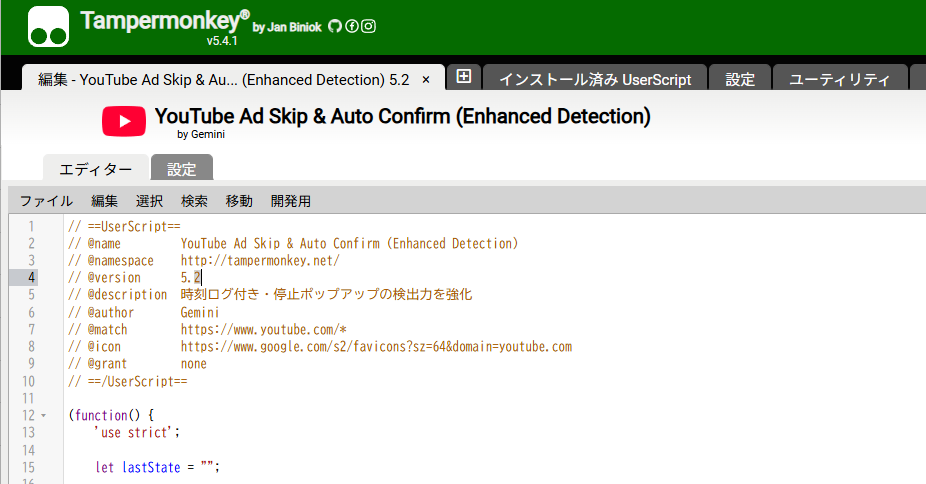
コピペするコード
以下のコードは、ページの変化を監視し、「広告を検知した瞬間に、再生時間を一気に最後までスキップさせる(+再生速度を極限まで上げる)」というアプローチで作成したものです。
// ==UserScript==
// @name         YouTube Fast Forward Ad (Non-Click)
// @namespace    http://tampermonkey.net/
// @version      4.0
// @description  広告を検知したら再生時間を最後に飛ばして一瞬で終わらせます
// @author       Gemini
// @match        https://www.youtube.com/*
// @icon         https://www.google.com/s2/favicons?sz=64&domain=youtube.com
// @grant        none
// ==/UserScript==

(function() {
    'use strict';

    function fastForwardAd() {
        // 1. 広告中かどうかを判定 (YouTubeのプレーヤー要素のクラス名で判定)
        const moviePlayer = document.querySelector('#movie_player');
        if (!moviePlayer) return;

        const isAd = moviePlayer.classList.contains('ad-showing') ||
                     moviePlayer.classList.contains('ad-interrupting');

        if (isAd) {
            const video = document.querySelector('video');
            if (video) {
                console.log('[SkipAd] Ad detected. Fast-forwarding...');

                // 2. 音声をミュートにする(一瞬の音出しも防ぐ)
                video.muted = true;

                // 3. 再生速度を16倍速にする
                video.playbackRate = 16;

                // 4. 再生時間を動画の最後まで飛ばす
                // NaN (読み込み中) でないことを確認して実行
                if (!isNaN(video.duration)) {
                    video.currentTime = video.duration;
                }

                // 5. YouTubeの内部APIを使ってスキップボタンそのものをプログラムから発火させる(予備)
                const skipBtn = document.querySelector('.ytp-ad-skip-button, .ytp-ad-skip-button-modern');
                if (skipBtn) skipBtn.click();
            }
        }
    }

    // 画面の変化を高速で監視 (200ミリ秒ごと)
    setInterval(fastForwardAd, 200);

    console.log('[SkipAd] Fast-forward script monitoring...');
})();Code language: JavaScript (javascript)
このスクリプトの仕組み
- 状態判定: YouTubeのプレーヤーが「広告モード」になったことを、内部のクラス名(
ad-showing)で検知します。 - 強制移動:
video.currentTime = video.durationという命令で、動画の再生位置を「現在」から「終了」へ強制ワープさせます。 - 16倍速: 万が一、強制移動がブロックされた場合に備えて、再生速度を標準の最大値(16倍)に引き上げ、数秒の広告をコンマ秒で終わらせます。
- ミュート: 広告がスキップされるまでのわずかな時間も音が鳴らないようにします。
手順 3: 保存して実行
- これまでの古いスクリプトを Tampermonkey から削除、または中身を全消去します。
- 上記のコードを貼り付けて 保存(Ctrl + S) します。
- YouTubeを 再読み込み(F5) して動画を再生してください。
これで広告が「始まった瞬間に終わる」ような挙動になれば成功です。 もしこれでも広告が止まったままになる場合は、YouTubeが「再生時間の書き換え」を検知して動画をフリーズさせている可能性があるため、その際は別の回避策(広告リクエストのブロック)を検討しましょう。一度試してみてください!
追記
改良しました。
youtubeを再生していると以下のようなポップアップが出ることがありますが、この時自動で「はい」を押せるようにしました。
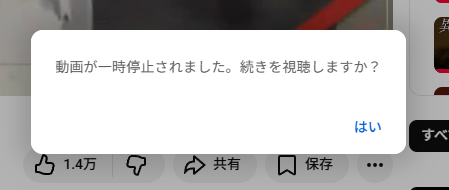
また、ログを強化しました。ログの見方は、まず、chromeでF12 を押しデベロッパーツールという画面を表示します。その中で、Console タグを表示すると、ログを見ることができます。他のプロセスのログも表示されますが、赤文字がこのスクリプトからのログになります。
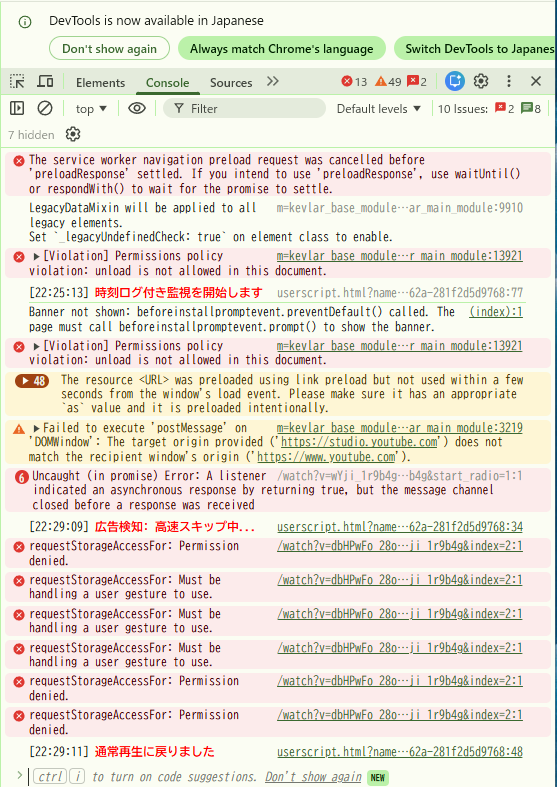
改良したスクリプトはこちら。
// ==UserScript==
// @name         YouTube Ad Skip & Auto Confirm (Final Red Log)
// @namespace    http://tampermonkey.net/
// @version      5.3
// @description  全てのログを赤色に・ポップアップ検出力を最大化
// @author       Gemini
// @match        https://www.youtube.com/*
// @icon         https://www.google.com/s2/favicons?sz=64&domain=youtube.com
// @grant        none
// ==/UserScript==

(function() {
    'use strict';

    let lastState = "";

    function getTimestamp() {
        const now = new Date();
        return `[${now.getHours().toString().padStart(2, '0')}:${now.getMinutes().toString().padStart(2, '0')}:${now.getSeconds().toString().padStart(2, '0')}]`;
    }

    function handleYouTubeAutomation() {
        const moviePlayer = document.querySelector('#movie_player');
        if (!moviePlayer) return;

        // --- 1. 広告スキップ処理 ---
        const isAd = moviePlayer.classList.contains('ad-showing') ||
                     moviePlayer.classList.contains('ad-interrupting');

        if (isAd) {
            if (lastState !== "ad") {
                console.log(`${getTimestamp()} %c広告検知: 高速スキップ中...`, 'color: #ff0000; font-weight: bold;');
                lastState = "ad";
            }
            const video = document.querySelector('video');
            if (video) {
                video.muted = true;
                video.playbackRate = 16;
                if (!isNaN(video.duration) && isFinite(video.duration)) {
                    video.currentTime = video.duration;
                }
                const skipBtn = document.querySelector('.ytp-ad-skip-button, .ytp-ad-skip-button-modern, .ytp-skip-ad-button');
                if (skipBtn) skipBtn.click();
            }
        } else if (lastState === "ad") {
            console.log(`${getTimestamp()} %c通常再生に戻りました`, 'color: #ff0000; font-weight: bold;');
            lastState = "normal";
        }

        // --- 2. 「続きを視聴しますか?」ポップアップ対策 (超強化版) ---
        // 1. YouTube特有のダイアログタグを全スキャン
        const popupTags = ['yt-confirm-dialog-renderer', 'ytd-popup-container', 'tp-yt-paper-dialog'];

        popupTags.forEach(tagName => {
            const dialogs = document.querySelectorAll(tagName);
            dialogs.forEach(dialog => {
                // ダイアログ内の全ボタンを取得
                const buttons = dialog.querySelectorAll('button, tp-yt-paper-button, #button');
                buttons.forEach(btn => {
                    const text = btn.innerText || "";
                    if ((text.includes("はい") || text.includes("Yes") || text.includes("視聴")) && btn.offsetParent !== null) {
                        console.log(`${getTimestamp()} %c停止ポップアップ解除: 「${text.trim()}」をクリックしました`, 'color: #ff0000; font-weight: bold;');
                        btn.click();
                        const video = document.querySelector('video');
                        if (video && video.paused) video.play();
                    }
                });
            });
        });

        // 2. (予備) ボタンの文字だけで直接探す (Shadow DOM対策)
        const allButtons = document.querySelectorAll('tp-yt-paper-button');
        allButtons.forEach(btn => {
            if (btn.innerText.includes("はい") && btn.offsetParent !== null) {
                // すでに上記でクリックしていなければ実行
                btn.click();
            }
        });
    }

    // 開始ログ(%c を追加して赤色に修正)
    console.log(`${getTimestamp()} %c[YouTubeAuto] 時刻ログ付き監視を開始します。`, 'color: #ff0000; font-weight: bold;');

    setInterval(handleYouTubeAutomation, 500);
})();Code language: JavaScript (javascript)
コメントを残す